Calendar
QuicksearchSyndicate This BlogCategoriesBlog AdministrationLizenz/LicenseDer Inhalt dieses Blogs ist © Copyright 2009 Ralf Ertzinger. Jegliche Reproduktion und Wiederverwertung nur mit schriftlicher Genehmigung des Autors.
The content of this blog is © Copyright 2009 Ralf Ertzinger. |
Sunday, March 21. 2010Building a multi OS USB boot stick, Part 1 (Windows)Among the things I carry around is always a collection of USB sticks, for various purposes. One of those is usually dedicated to a Linux rescue system, in order to get somehow broken systems back on their feet. While it is possible these days to access non Linux systems from a booted Linux system any repair work beyond simple text file editing and file copying usually requires OS specific tools to get the job done. Thus it would be nice not only to have a Linux rescue system at hand, but a Windows one as well. And Solaris, while we’re at it. And possibly some more. USB sticks are cheap, at least in this part of the world. 10EUR will get you 4GB off the shelf in almost any electronics store, a little more money will get you 8GB ordered online. So space is not really an issue. Actually installing an operating system in a way that allows it to boot off a removable media requires some specific preparations and tools in each case. This means that a running instance of that specific OS is needed to prepare the installation. This means that to get Windows to boot of an USB stick a running Windows installation is needed. The same goes for Solaris and Linux. PreparationsThe USB stick used for this exercise is a 4G Sandisk. This procedure will delete all data currently on the stick, so either make sure there is nothing of any interest on it, or just get a new one. The initial plan is to have Windows, Linux and Solaris boot off the stick. Each OS will get it’s own partition, to keep possible clashes between the files of each system to a minimum (and because Solaris wants and UFS partition, but more on that later). Installing Windows on USBThe standard Windows installer does not allow for installation on USB devices. The standard tool for those tasks is BartPE, a free tool to create so-called Preinstalled Environments. Those are actually a Microsoft supported way to preinstall an operating system on a PC, which is used by system builders to deliver machines with the OS already installed but not registered. The Microsoft tools to create these environments are not easily available, though, and this is where BartPE came in a few years ago. It’s original purpose was to create Live CDs of Windows, but booting from USB was added (experimentally) later. While BartPE is a very valuable tool there is an even better one for this special purpose: The Ultimate Boot CD for Windows, which is basically a BartPE with a lot of useful tools already tacked to the side, and a completely reworked USB installer. To use UBCD the following is needed:
The last point is especially interesting. UBCD will take all drivers whichare contained in the Windows XP install CD, which, as everyone knows who tried to install XP on a reasonably recent machine, is not exactly much. While the USB installed will boot (hopefully), access to hard disk drives on the machine or access to network interfaces may be severely limited due to missing drivers. UBCD already comes with a largeish selection of updated drivers for mass storage, LAN and WLAN, so simply building an image with the default settings has a good chance of working on a large number of modern machines (although the WLAN drivers are disabled by default). Install procedure
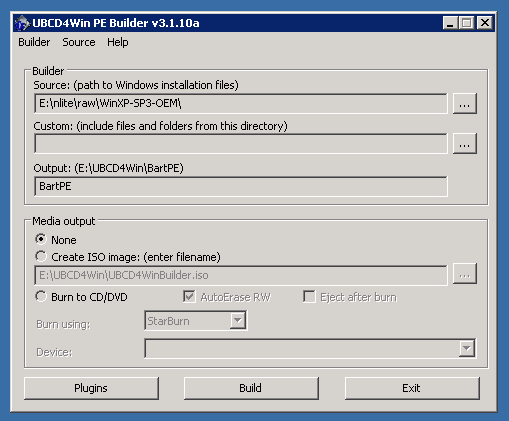
![]() The UBCD main screen This will start a build process with the default settings, which are reasonable for a first build. UBCD is very customizable, most of the options are available by clicking the “Plugins” button on the main screen. Describing the various things that can be done here is beyond this text, but the UBCD home page has details on this. After the build has finished plug in the USB stick and start
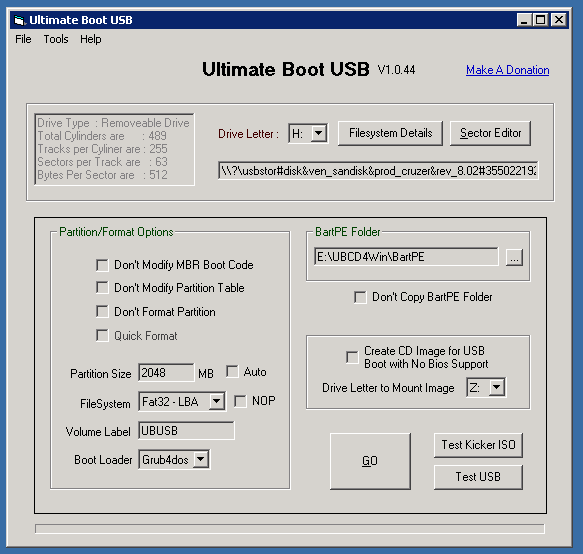
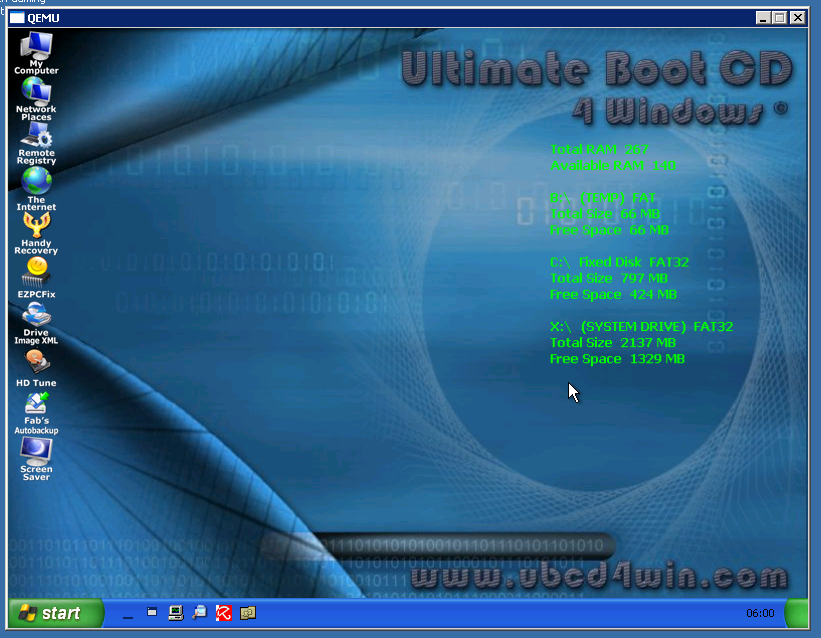
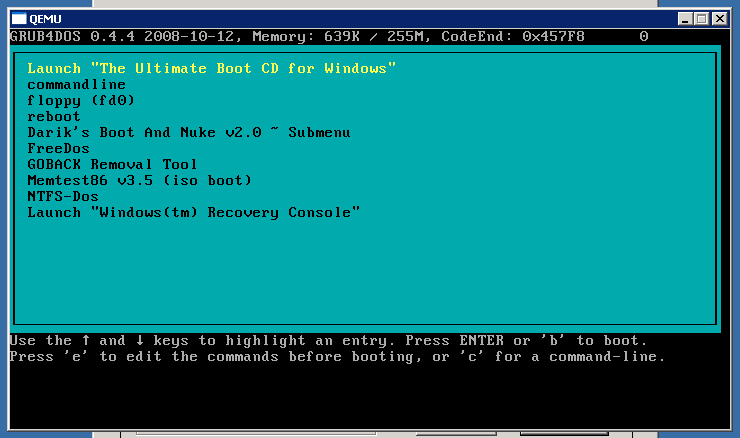
![]() UBUSB main screen Clicking “Go” will start the process of repartitioning, formattingand copying of data to the USB stick. This may take a while. After the process has finished (hopefully successful) the resulting USB stick can immediately be tested, because UBCD comes with a copy of qemu, which can emulate a PC. Just click the “Test USB” button, and a virtual PC will try to boot off the USB stick just created. ![]() USB boot menu ![]() Windows booted off the USB stick in qemu One down, two to go.
Posted by Ralf Ertzinger
in Computer, Linux, Software, Solaris, Windows
at
18:23
| Comments (0)
| Trackbacks (0)
Wednesday, November 18. 2009Resetting SATA devices under LinuxNote: this was tested only on SATA attached optical drives, not on hard disks. Removing a hard disk with mounted partitions on it (directly or indirectly) is probably not a very smart idea. A device name of
# readlink /sys/block/sr0 ../devices/pci0000:00/0000:00:1f.2/host1/target1:0:0/1:0:0:0/block/sr0 The interesting part if the answer is
# echo 1 > /sys/block/sr0/device/delete This will remove the device from the bus (logically). Look in
# echo "- - -" > /sys/class/scsi_host/host1/scan
Tuesday, March 24. 2009iSCSI: Opensolaris target, Fedora initiator, with CHAPFor some reason or another finding instructions on how to actually configure iSCSI for a rather simple and common use case (one target on Solaris, one initiator on Fedora, CHAP authentication) seems to be pretty hard. Either my google-fu is seriously broken today, or everyone except for me considers this to be so easy and obvious that it does not warrant documentation. Which, having done this for the last three hours, I seriously doubt. The Solaris side is actually documented quite well (I primarily used this blog entry by alasdair), the Linux side is lacking. It does not help matters that both sides use identically named tools that work in completely different ways. So, the deal is as follows: One OpenSolaris system, acting as iSCSI target (that is the system presenting the storage space). One Fedora Linux system, acting as iSCSI initiator (that is the system that wants to use the storage space) Create 100GB storage space on the target and let the initiator connect to this storage space and create a filesystem on in. The connection has to be authenticated one way (the initiator presents credentials to the target). The Solaris sideThe system is running Nevada, the configuration here was done with build snv_110. First, the iSCSI target software needs to be installed and enabled: # gkp.pl -d /mnt/Solaris_11/Product SUNWiscsitgtu # svcadm enable iscsitgt:default # The backing store for the iSCSI volumes shall be provided by ZFS:
# zfs create -o canmount=off tank/iscsi
# zfs create -V 100G -o shareiscsi=on tank/iscsi/vol001
# iscsitadm list target -v
Target: tank/iscsi/vol001
iSCSI Name: iqn.1986-03.com.sun:02:218c35e0-0881-cb4f-d6bd-80e08bdc98d8
Alias: tank/iscsi/vol001
[...]
#
The
# iscsitadm create tpgt 1
# iscsitadm modify tpgt -i 212.51.12.90 1
# iscsitadm list tpgt -v 1
TPGT: 1
IP Address: 212.51.12.90
# iscsitadm modify target -p 1 tank/iscsi/vol001
# iscsitadm list target -v
Target: tank/iscsi/vol001
[...]
TPGT list:
TPGT: 1
[...]
#
In order to secure access to this volume some more the initiator is required to authenticate itself using CHAP before access is granted. To do this three pieces of information are needed:
The initiator used here has an iqn of
# iscsitadm create initiator -n iqn.2005-03.com.max:01.cb5c4c lain
# iscsitadm modify initiator --chap-name lain lain
# iscsitadm modify initiator --chap-secret lain
[...]
# iscsitadm list initiator -v
Initiator: lain
iSCSI Name: iqn.2005-03.com.max:01.cb5c4c
CHAP Name: lain
CHAP Secret: Set
# iscsitadm modify target --acl lain tank/iscsi/vol001
# iscsitadm list target -v
Target: tank/iscsi/vol001
[...]
ACL list:
Initiator: lain
[...]
#
This concludes the Solaris side of things. The Fedora sideThe system is running Fedora Rawhide, close to the Fedora 11 Beta release at the time of this writing. On the Linux side iSCSI is handled by the open-iscsi toolchain, packaged as # yum install iscsi-initiator-utils [...] # Since the system in question is a notebook, and the iSCSI target may not be available at all times, the iSCSI service must be instructed not to connect to configured devices automatically: # perl -pi -e 's/node.startup.*/node.startup = manual/' /etc/iscsi/iscsid.conf # The initiator name mentioned in the Solaris section above can be configured freely on the system. A random value is created during package installation and saved in # cat /etc/iscsi/initiatorname.iscsi InitiatorName=iqn.2005-03.com.max:01.cb5c4c # Be sure the name configured there matches the name defined in the initiator on the Solaris side. Even though a username/password pair was defined on the target credentials are not needed for target discovery (the process by which an initiator asks a target which iSCSI volumes are available): # iscsiadm -m discovery -t st -p 212.51.12.90 212.51.12.90:3260,1 iqn.1986-03.com.sun:02:218c35e0-0881-cb4f-d6bd-80e08bdc98d8 # iscsiadm -m node 212.51.12.90:3260,1 iqn.1986-03.com.sun:02:218c35e0-0881-cb4f-d6bd-80e08bdc98d8 # The discovery process has found a single volume exported by the target and added it to the local node list. The iqn matches the value shown above in the Solaris section. Now the CHAP credentials have to be added to the node so the initiator can actually connect to the volume: # iscsiadm -m node --target 'iqn.1986-03.com.sun:02:218c35e0-0881-cb4f-d6bd-80e08bdc98d8' \ --name 'node.session.auth.authmethod' -v 'CHAP' # iscsiadm -m node --target 'iqn.1986-03.com.sun:02:218c35e0-0881-cb4f-d6bd-80e08bdc98d8' \ --name 'node.session.auth.username' -v 'lain' # iscsiadm -m node --target 'iqn.1986-03.com.sun:02:218c35e0-0881-cb4f-d6bd-80e08bdc98d8' \ --name 'node.session.auth.password' -v 'iscsipassword' # iscsiadm -m node --target 'iqn.1986-03.com.sun:02:218c35e0-0881-cb4f-d6bd-80e08bdc98d8' node.name = iqn.1986-03.com.sun:02:218c35e0-0881-cb4f-d6bd-80e08bdc98d8 node.tpgt = 1 node.startup = manual [...] node.session.auth.authmethod = CHAP node.session.auth.username = lain node.session.auth.password = ******** [...] # Now the volume can finally be accessed: # iscsiadm -m node --target 'iqn.1986-03.com.sun:02:218c35e0-0881-cb4f-d6bd-80e08bdc98d8' --login Logging in to [iface: default, target: iqn.1986-03.com.sun:02:218c35e0-0881-cb4f-d6bd-80e08bdc98d8, portal: 212.51.12.90,3260] Login to [iface: default, target: iqn.1986-03.com.sun:02:218c35e0-0881-cb4f-d6bd-80e08bdc98d8, portal: 212.51.12.90,3260]: successful # After some seconds a device node for this volume should appear in # ls /dev/disk/by-path/ ip-212.51.12.90:3260-iscsi-iqn.1986-03.com.sun:02:218c35e0-0881-cb4f-d6bd-80e08bdc98d8-lun-0 [...] # The disk is ready to be used.
Posted by Ralf Ertzinger
in Computer, Linux, Software, Solaris
at
01:16
| Comments (0)
| Trackbacks (0)
Wednesday, March 11. 2009Building an OpenSolaris storage - Software, Part 6Since I tend to forget these things, here’s a short list showing various package management tasks.
Posted by Ralf Ertzinger
in Computer, Linux, Software, Solaris
at
20:50
| Comments (0)
| Trackbacks (0)
Sunday, January 25. 2009Reading OSX install media under LinuxIf you ever tried to take a look around an OSX install DVD unter Linux you may have been surprised by $ du -sh /media/OSX86DVD/ 132K /media/OSX86DVD/ There is no magic here, as seen by the fact that the same disk inserted into a running OSX system shows a completely different file structure with more than 4GB of data. The explanation for this is that there are two filesystems on the DVD: First, a normal ISO9660 CD file system, which contains some bootloader files, and not much else. This filesystem is the one that Linux (and Windows) see by default. Behind the ISO9660 filesystem there is another one, which spans the rest of the disk. This is a complete hard disk image with it’s own partition table, and which contains the real installer data. As Linux does not expect this it does not try to access this filesystem, and the files remain invisible. In order to get at the files in the second part of the disk some command line magic is necessary. You will need root privileges for the following operations. I assume that the DVD device is The Linux kernel has a nice block device mapping layer which allows us to take a slice out of an existing block device and present this slice as a new device. Even more, there is a helper tool that inspects a block device, looks for partitions and automatically creates such a mapping for each partition. This tool is called So we use # kpartx -a /dev/sr0 device-mapper: reload ioctl failed: Invalid argument create/reload failed on sr0p1 device-mapper: reload ioctl failed: Invalid argument create/reload failed on sr0p2 # That did not work too well. For some reason the device mapper does not like CDROM/DVD devices. So we’ll have to get a bit inventive. We create a loop device which is backed by the DVD device, and use that. # /sbin/losetup /dev/loop0 /dev/sr0 # /sbin/kpartx -av /dev/loop0 add map loop0p1 (253:5): 0 63 linear /dev/loop0 1 add map loop0p2 (253:6): 0 9178688 linear /dev/loop0 448 # The command found and created two partitions. The first partition is the ISO9660 file system at the beginning of the disk, the second one is the partition we are interested in. Let’s look what’s in it. # file -s /dev/mapper/loop0p2 /dev/mapper/loop0p2: Macintosh HFS Extended version 4 data last mounted by: '10.0', created: Tue Oct 30 00:32:01 2007, last modified: Wed Dec 19 16:45:14 2007, last checked: Tue Oct 30 00:32:01 2007, block size: 4096, number of blocks: 1147336, free blocks: 192685 # That looks good. We could now mount the filesystem and look around. # mount /dev/mapper/loop0p2 /mnt # ls /mnt Applications Desktop DB dev Install Mac OS X.app mach_kernel sbin tmp vanilla Volumes bin Desktop DF etc Library private System usr var # To get rid of all this again we have to unmount the file system, destroy the mappings and release the loop device: # umount /mnt # kpartx -d /dev/loop0 # losetup -d /dev/loop0
(Page 1 of 1, totaling 5 entries)
|
|||||||||||||||||||||||||||||||||||||||||||||||||||||||||||||